Spring Sale: 48% off & free shipping in United States over $89

Language

Manual Core and Spark practice companion

Understand every detail.

Read this first, please

At Soundbrenner we firmly believe success is not given, it's earned. This is true for musicians, but also for companies.

We went to great lengths to ensure the product you’re holding was made to the highest standards. We care deeply that it becomes an irreplaceable companion on your musical journey.

If you experience any issues, our team will work hard to put a smile back on your face. We’re just an e-mail away.


First steps

Video: the best way to get started

This video is the ultimate crash course to learn everything you need to know about how to use your Core/Spark in the shortest time possible.


In the box Core 2

Core 2
Core 2
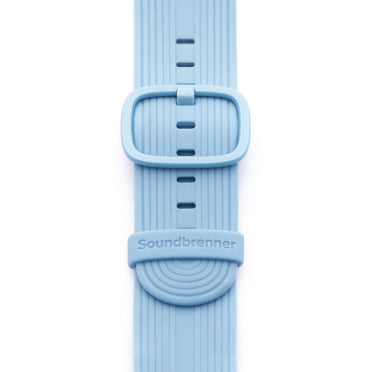
Silicone strap
Silicone strap
Core watch strap rig
Body strap
Body strap
Body strap rig
Body strap rig
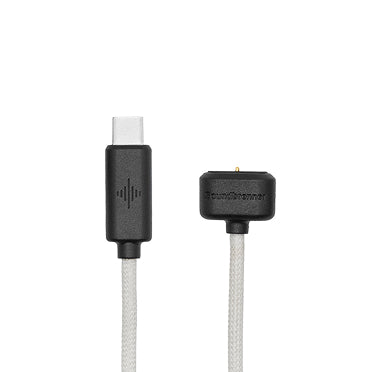
Charging cable USB-C

In the box Core Steel 2

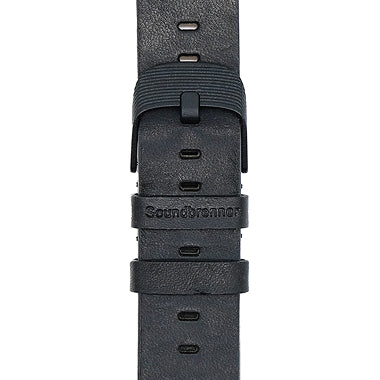
Bonus: Italian leather strap
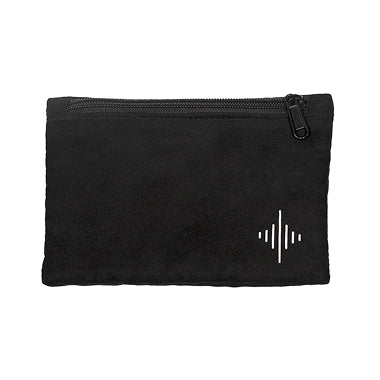
Bonus: carrying pouch
Core Steel 2
Core Steel 2
Silicone strap
Silicone strap
Body strap
Body strap
Body strap rig
Body strap rig
Charging cable USB-C

In the box Spark

Spark
Spark
Spark silicone strap
Wearable charging cable

Tech specs Core 2

Size

45.5mm (1.7 in)

Weight

34g (1.2 oz) (Core), 68g (2.4 oz) (Core Steel)

Case material

Polycarbonate (Core), Stainless steel (Core Steel)

Wheel material

Aluminium (Core), Stainless steel (Core Steel)

Glass material

Tempered mineral glass

Strap size

Fits wrists with 140mm - 210mm (5.5 in - 8.3 in)

Water resistance

Splash resistant (IP65), protected from rain and water splashes (but no showering!)

Battery

4+ days in watch mode, or 3+ hours of metronome playback (200 mAh lithium-ion battery)

Display

2x Monochrome OLED, 0.68 in, 96x32px

Sensors

G-sensor for raise to wake function

LEDs

1 RGB LED in center, 8 RGB LEDs in outer ring

Capacitive touch

Yes

Supported languages

English, German, Spanish, French, Italian, Chinese (simplified), Chinese (traditional), Korean, Japanese


Vibration motor

ERM haptic motor, 7G amplitude

BPM range

20 - 400 BPM

Rhythm options

Adjust the time signature or subdivision and set accents on beats

Customization options

Adjust the LED light colors or vibrations and add sounds via your mobile device

Wearing positions

Wrist, arm, ankle, thigh, chest & shoulder (body strap included)

Control options

Use standalone or with companion mobile app

Multi-player sync

Up to 5 Core or Pulse with one mobile device, sync multiple mobile devices over WiFi with Ableton Link

Tap tempo

Yes


Session goals

Set time-based targets for each practice session

Instruments

Tag each session with the instrument you used

Activity breakdown

Detailed practice insights available with companion mobile app

Streaks

Supports daily & weekly goals with current streak shown on watch face

Time cropping

Adjust session duration post-practice for accurate time tracking

Widgets

View practice statistics on lock and home screen widgets (iOS only)

Data sync

Active practice sessions, along with historical data, are synced between wearable & mobile app


Microphone tuner

Yes

Microphones

MEMS microphone & piezo contact microphone

Supported instruments

Microphone tuner: universal compatibility. Contact tuner: guitar, bass guitar, ukulele & violin

Frequency range

25.6 Hz - 416 Hz

Tuning reference

410 Hz - 480 Hz

Accuracy

±1 cent

LED guided tuning

Yes


Microphone

MEMS microphone

Measuring range

70 - 110 dB

Frequency weighting

A-weighted

dB steps

±1 dB

Real-time dB

±1 cent

Average dB

Yes

Volume alarm

Yes


Connectivity

Bluetooth 5.0

Smartphone music remote

iOS & Android

Smartphone notifications

iOS & Android

Accept & decline phone calls

iOS & Android

Calendar notifications

iOS & Android

App dock

Rearrange and remove apps

Raise to wake display

Yes

Timer app

Yes

Alarm app

Yes

Stopwatch app

Yes


Tech specs Spark

Width x height x depth

45mm x 45mm x 12mm (1.8 in x 1.8 in x 0.5 in)

Weight

34g (1.2 oz)

Case

Polycarbonate

Wheel

Aluminium

Display

Tempered mineral glass

Strap

Fits wrists with 130mm - 175mm (5.1 in - 6.9 in)

Water resistance

Splash resistant (IP65), protected from rain and water splashes (but no showering!)

Battery

4+ days in watch mode, or 3+ hours of metronome playback (200 mAh lithium-ion battery)

Display

2x Monochrome OLED, 0.68 in, 96x32px

Sensors

G-sensor for raise to wake function

LEDs

1 RGB LED in center, 8 RGB LEDs in outer ring

Capacitive touch

Yes

Supported languages

English, German, Spanish, French, Italian, Chinese (simplified), Chinese (traditional), Korean, Japanese


Session goals

Set time-based targets for each practice session

Instruments

Tag each session with the instrument you used

Activity breakdown

Detailed practice insights available with companion mobile app

Streaks

Supports daily & weekly goals with current streak shown on watch face

Time cropping

Adjust session duration post-practice for accurate time tracking

Widgets

View practice statistics on lock and home screen widgets (iOS only)

Data sync

Active practice sessions, along with historical data, are synced between wearable & mobile app


Vibration motor

ERM haptic motor, 7G amplitude

BPM range

20 - 400 BPM

Rhythm options

Adjust the time signature or subdivision and set accents on beats

Customization options

Adjust the LED light colors or vibrations and add sounds via your mobile device

Wearing positions

Wrist, with separately available body strap also arm, ankle, thigh, chest & shoulder

Control options

Use standalone or with companion mobile app

Multi-player sync

Up to 5 Spark, Core or Pulse with one mobile device, sync multiple mobile devices over WiFi with Ableton Link

Tap tempo

Yes


Microphone tuner

Yes

Microphones

MEMS microphone & piezo contact microphone

Supported instruments

Microphone tuner: universal compatibility. Contact tuner: guitar, bass guitar, ukulele & violin

Frequency range

25.6 Hz - 416 Hz

Tuning reference

410 Hz - 480 Hz

Accuracy

±1 cent

LED guided tuning

Yes


Microphone

MEMS microphone

Measuring range

70 - 110 dB

Frequency weighting

A-weighted

dB steps

±1 dB

Real-time dB

±1 cent

Average dB

Yes

Volume alarm

Yes


Connectivity

Bluetooth 5.0

Smartphone music remote

iOS & Android

Smartphone notifications

iOS & Android

Accept & decline phone calls

iOS & Android

Calendar notifications

iOS & Android

App dock

Rearrange and remove apps

Raise to wake display

Yes

Timer app

Yes

Alarm app

Yes

Stopwatch app

Yes


Plus subscription

Upgrade your practice with Plus, our optional premium service that unlocks the full capabilities of our app. While the Core itself provides a complete experience on its own, Plus offers extras such as cloud storage of your songs and setlists, among other features. Our subscription model supports the rollout of multiple significant app updates annually, so get ready for a continuous stream of exciting new features!

Your Core/Spark comes with a free 3-month trial that you can redeem by following the in-app instructions after connecting your wearable!


Charging the Core/Spark

To charge your Core/Spark, attach the cable to the magnetic port located on the side of the device. It takes ~1.5 hours to fully charge.

Battery life

  • 4+ days in watch mode, or
  • 3+ hours metronome playback

Charging light

  • Orange light = charging
  • Green light = fully charged

App & compatibility

Download our app on the product page.

Requires an iPhone, iPad, iPod touch, Android device, or Mac with Apple silicon. See the app manual for details.


Wear & care

The Core/Spark is splash resistant (IP65). This means it can withstand light rain or water splashes, for example while washing your hands. However, it can not withstand heavy rain, showers or water immersion.

The Core/Spark contains strong magnets that may interfere with some medical devices. Read the "Safety & regulatory information" section at the end of this manual for more information.

Tip

Don't store your Core/Spark for extended periods (over 3 months) with an empty battery, as this can lead to permanent battery damage.

When the battery of your wearable is not in use, it will discharge at a low speed. If you do not use the battery for an extended period of time (e.g. 3 months or longer) there is a risk that it over-discharges. This can cause permanent damage to the electrodes and active materials of the battery. In the worst case this means that the battery (and your wearable) no longer work. This behavior is typical in all of today's lithium batteries.

The solution is simple. Charge and discharge the battery in your wearable at least every three months to ensure it remains in good condition. If you use your wearable regularly (e.g. at least once per week), you do not have to worry or take any special measures to maintain the battery's health.

What happens if the battery in my wearable is permanently damaged?

Unfortunately it's currently not possible to replace the battery in our wearables. This is not an intentional design choice, but because we had to use adhesives to increase the water resistance of our products. This means if a wearable is opened up, many of the mechanical components get damaged and can't be re-used. It's definitely a goal to make our batteries replaceable in the future, but with a small and tightly packed form factor like a smartwatch this is not a trivial challenge. 

It's all the more important that you take good care of your wearable's battery. In case your wearable's battery is damaged, please contact our support and we'll try our best to help you: contact support


Silicone strap & body strap

Both straps are very durable and suitable for all environmental conditions.

Italian leather straps

We only use premium quality leather sourced from Italy. Any variations in color or markings such as scars and wrinkles are inherent to the natural beauty and uniqueness of genuine leather.

Over time the leather will mold to your wrist and develop a patina finish. To maximize its durability, we suggest to limit the leather’s contact with moisture.


Lock system for the rig (Core only)

To remove the Core from its rig, twist it counterclockwise and take it off.

To put the Core on its rig, hover it right above the rig and let go. Once the Core drops on the rig, it will magnetically snap into place.

When placing the Core on its rig, make sure the buttons point towards the direction of your hand. To wear the Core on your other wrist, you can change the orientation of the screen in our mobile app.

Tip

Make sure that you hear and feel the spring-loaded pin when the Core locks into place on the rig. This will ensure it can’t fall off.


Changing the watch straps

To change your watch strap, simply turn the device on its back and open the two rivets on each side.

We’ve created a range of stylish strap options for the Soundbrenner Core and Spark. They’re made from the finest materials such as silicone, woven nylon or Italian leather. Explore our latest collection on:


Device overview


Device controls

Top button

  • Go backward
  • Stop editing selection
  • Power on & power off (long press)

Bottom button

  • Go forward
  • Start editing selection
  • Open app dock

Wheel

  • Navigate the app dock
  • Change values while editing a selection

Touch surface

  • Tap the soundwave twice quickly to start or pause a feature while inside an app
  • Tap the soundwave three or more times to tap tempo while inside the "Metronome" app

Power on & power off

Power on
Hold the top button for 1 second to turn on the device.

Power off

1. Hold the top button for 3 seconds until the power off prompt appears.

2. Select yes by pressing the bottom button.


Navigation hierarchy


Touch interactions

The Core/Spark features a capacitive touch surface. To ensure it can reliably detect your inputs, make sure that you use two fingers flat across the surface. Don’t just use your fingertips!

Start or pause a feature

Tap the soundwave twice quickly to start or pause certain features. Works in "Metronome" app, "Timer" app, "Stopwatch" app and the "Smartphone music remote".

Tap tempo

Tap the soundwave three times or more at a steady pace. The Core/Spark will set a new tempo that matches the average pace of your taps. Works in "Metronome" app only.


Time, date & status icons

Time notation

Use the app to change the time notation from AM/PM to 24h clock and vice versa.

Watch face icons

Battery level
Battery charging
New notification
Smartphone music remote
Ready to pair
Disconnected but paired
Airplane mode
Practice streak active goal not reached
Practice streak active goal reached

Practice tracker

(Core 2/Spark only)

Tracking on Core/Spark

Inside the "Track" app, set your practice session duration and choose the instrument you'll use. To modify instrument choices on your device, use our mobile app and go to: "Settings" → "User profile" → "Instruments". To start your session, tap the soundwave twice quickly.

If you already practiced for a while but didn't start the session on your device, adjust the start time by pressing the bottom button and rotating the wheel.

When a practice session is active on your device, the "Track" app will automatically open each time you wake the screen for easy access. The LED ring fills with orange to show progress towards your goal. To turn off the orange tracking light, disable it in the Core 2/Spark settings of our mobile app.

Tap twice quickly during an active session to pause or end it. When editing the session, you can delete it or adjust its start and end times.


Tracking with our mobile app

When you track a practice session on your device or our mobile app, any changes you make to things like your goal, instrument or starting time will sync across both devices. All saved sessions will also automatically sync. If synchronization issues arise, you can manually sync in the mobile app inside your device's settings.

The mobile app offers various options to view your practice data, like a practice calendar, streaks, and more.


Vibrating metronome

Body strap

Where you place the Core/Spark on your body can have a big impact on your experience. What works best is different for each musician.

The included body strap and body strap rig allow you to wear the Core on your wrist, arm or ankle. Add the included extension piece to wear it on your chest, shoulder or thigh.

Tip

For your first few sessions, try out different locations to see which one feels best. Wearing it on the chest is usually the most effective location.

Remember to keep the strap tight – the tighter the strap, the stronger the feeling of the vibrations.

If you have thin arms or ankles

To set the body strap to its smallest setting, align the arms of the rig with the markings on the strap as shown in the illustration below.


How to feel the beat

Using a vibrational metronome is different. When you first start using the Core/Spark, you need to get used to it first. Don’t give up - you’ll get better over time. It’s just like learning to practice with a traditional metronome!

Over time, the vibration can even become a subconscious feeling that helps you keep the beat without thinking about it.


Setting up a rhythm

1. Press the bottom button to select the first value.

2. While selected, use the wheel to change the

3. Press the bottom button again to edit the next value. Press the top button to go back.

4. Tap the soundwave twice quickly to start or pause the metronome.

Tip

An alternative way to start the metronome is to long-press the bottom button. Once you release the button, the metronome starts. This makes it easy to sync your device's starting time with the rhythm of something you're listening to.


Change LED lights, vibrations & sounds

Because we know every musician is different, you can customize the Core/Spark to your liking with our app.

LED lights & vibrations

To customize or turn off the LED lights and vibrations, open our mobile app and go to: "Settings" → select your Core → "Metronome vibrations" or "Metronome lights".

We recommend to experiment with different vibration intensities and durations to find out what works best for you!

Sounds

To customize or turn off the metronome sounds, open our mobile app and go to: "Settings" → "App settings" → "Metronome sounds".


Multi-player sync

The Core/Spark can be synced to other Soundbrenner wearables by connecting all of them to the same mobile device. You can sync up to a total of five devices, allowing you to feel the beat together.

If you want to connect a Core/Spark to a different mobile device, you need to unpair it from the existing mobile device first. To bring up the unpairing prompt, open the "Settings" app on your device, navigate to "Bluetooth" and press the bottom button.

Once the Core/Spark is ready to pair, open the Soundbrenner app on the mobile device you want to use to sync the wearables. Inside the app navigate to: "Settings" → "Add a Soundbrenner wearable" → now select a Soundbrenner wearable you want to sync.


Chromatic tuner

Microphone tuner (Core 2/Spark only)

Launch the "Microphone Tuner" app and play a note - your device will detect the closest note and the cent deviation to it. As you tune, the LED ring changes from red to green to signal that the note is perfectly tuned.

Customize the tuning reference from 440 Hz to your preference by pressing the bottom button and twisting the wheel.


Contact tuner

Core 1 includes the "Contact tuner" app pre-installed. For Core 2/Spark, purchasing a magnetic tuning accessory is required. You can either get a tuning clip, or tuning mounts with adhesives. Both come with a unique code to unlock the "Contact tuner" app on Core 2/Spark. Contact tuning is designed to work with guitar, bass guitar, ukulele and violin.

Tip

If you want to purchase magnetic tuning accessories, go to:

Attaching a magnetic tuner mount

Each magnetic tuner mount has an adhesive pre-applied. Peel off the thin layer on the back of the tuner mount and attach the mount to the headstock of your instrument.

The tuner mount is designed to be left on long-term, so you don't have to remember taking it with you. That said, if you ever want to remove it, it's possible. If you peel off the adhesive, be careful to avoid any damage to your instrument.

How to use the tuner

First, open the "Contact tuner" app on your device. Next, take the wearable off its rig by twisting it counterclockwise. Finally, stick the magnetic port located on the side of the device to your tuner mount or tuner clip. Once you play a string, the LED ring and the screen of the device will light up. Happy tuning!


Decibel meter

Sound levels

If you open the "Decibel meter" app, the Core/Spark starts measuring the current, average and maximum sound levels. The Core/Spark can only measure sound levels above 70 dB and uses A-weighting.

Tip (Core only)

For a more accurate reading, take the Core off its rig and place it on a soft surface (e.g. a cloth or your hand) before opening the "Decibel meter" app.

Volume alarm

Your Core/Spark listens to the sound levels throughout the day. It will alert you once the volume reaches a risky level based on the World Health Organization’s guidelines:

  • 80 dB: 5 hours 30 minutes per day
  • 85 dB: 1 hour 45 minutes per day
  • 90 dB: 30 minutes per day
  • 95 dB: 10 minutes per day

Don’t worry - we respect your privacy and no audio is ever recorded and stored. To turn off the volume alarm and all background measurements, open our mobile app and go to "Settings" → select your Core → "Volume alarm".


Smartwatch

Smartphone notifications

Smartphone notifications are supported for iOS and Android mobile devices. The Core/Spark will receive the same notifications as your mobile device and is compatible with all apps. At the moment it’s not possible to enable or disable notifications for particular apps independently from your mobile device.

For the Core/Spark to receive notifications, iOS and Android require a number of permissions. When you connect your device for the first time to our app, we will ask for these permissions automatically during the device setup. 

If you are unable to receive notifications after the setup, check out our troubleshooting below:

For the Core to receive notifications, iOS and Android require a number of permissions. When you connect your Core for the first time to our app, we will ask for these permissions automatically during the device setup. 

If you are unable to receive notifications after the setup, try out the steps below.

If you have an iOS device:

Your mobile device needs to give Core permission to receive notifications. To do that, go to the "Settings" app on iOS (outside the Soundbrenner app) → "Bluetooth" → Tap on (i) next to your Core → Enable “Share System Notifications”.

If you are still having troubles, you can review the "Show Previews" setting of your notifications. To do that, go to the "Settings" app on iOS → "Notifications" → "Show Previews". There you need to either select the option "Always" or "When Unlocked". If you select the option "Never" your iOS device will not sent the notification to your Core.

Note that this global "Show Previews" setting can be customized for each app individually, so if you still have problems go to the "Settings" app on iOS → "Notifications"→ Scroll down and select the app you want to check → "Show Previews" and also make sure it is set to "Always" or "When Unlocked". 

If you have an Android device:

First, make sure you have the latest app version from Google Play installed (version 1.23.0 or above). If you are not sure if you have the latest version, just go to our app's listing on Google Play and check if there's an update available.

Also, your mobile device needs to give the Soundbrenner app permission to 1) always have access to your location and 2) to your notifications. To check your permission status, open our mobile app, go to "Settings" → select your Core → "Smartwatch". If there's no warning below the switch for "Smartphone notifications" you are all set. If there is, follow the on-screen instructions to grant permission.

Additional troubleshooting steps for both iOS & Android:

  1. Make sure you have the latest firmware version installed on your Core (1.5.1 or above). Learn how to update the firmware of your Core here.
  2. Navigate to the "Settings" app on your Core and make sure the "Smartphone notifications" setting is turned on.
  3. The Core can only receive notifications from the mobile device it was initially unlocked with to ensure privacy during multi-player sync. If you have trouble receiving notifications despite all permissions in place, we recommend to perform a factory reset of your Core and set it up from scratch with the account you're currently logged in.
  4. If you are still unable to get notifications to work, please reach out to our team at support@soundbrenner.com. We're looking forward to helping you out. 

Reading notifications

New notifications automatically appear on the Core/Spark when you wake its screen.

  • Twist the wheel to scroll the text of a notification forward and backward. 
  • Press the bottom button to delete the current notification and display the next notification. In the top right corner, you see how many notifications are queued up.
  • Long-press the bottom button to delete all notifications in the queue.
  • Press the top button to send all queued up notifications to the notification center, up to a maximum of 20.

To access the notification center, twist the wheel to the right when you’re on the watch face.

Phone calls

If you get a phone call, the Core/Spark will start vibrating and give you the option to accept or decline the call. Since the Core/Spark has no speaker, you’ll need to use Bluetooth headphones or your phone itself to take the call.


Smartphone music remote (Core 2/Spark only)

Control any media you play on your mobile device such as music, videos, podcasts, audiobooks and more. Compatible with all apps, for example Apple Music, Spotify or YouTube. To use this feature on Android, our mobile app requires access to your notifications.

1. Twist the wheel left to access the smartphone music remote.

2. To start or pause, tap the soundwave twice quickly.

3. Press the bottom button to select the current media you're playing. Twist the wheel forward for next, backward for previous.

4. Press the bottom button again to select the volume. Twist the wheel forward to increase, backward to decrease.


Timer

Press the bottom button to select if you want to edit the hours, minutes or seconds. Once selected, use the wheel to edit the time. Tap the soundwave twice quickly to start or pause the timer.

Stopwatch

Tap the soundwave twice quickly to start or pause the stopwatch.

Alarm

To create an alarm, select "New alarm" with the wheel and press the bottom button. Use the wheel to set the time of your alarm. With the bottom button, select which days the alarm should be active and turn each on by twisting the wheel right. The alarm will be active on days that are underlined. If no days are underlined, the alarm will be by default active on all days. 

Change the state of the alarm by selecting "On" with the bottom button. Twist the wheel to the right to select "Off" or "Delete". Confirm your selection by pressing the bottom button.

Settings

Airplane mode

Disable all radio signals such as Bluetooth. While airplane mode is on, your device won’t be able to communicate with your mobile device.

Bluetooth

Shows your current connection status. Press the bottom button to unpair and make your device ready to pair again.

Factory reset

This will erase all data and preferences and reset the Core/Spark back to factory settings. The device will be locked until the setup is completed with the Soundbrenner app.


Troubleshooting

Connecting to your mobile device

If you are having problems to connect your Core, Core 2 or Spark to your mobile device, try the steps below to resolve your problem.

Note that due to the many different Android versions, some of the system menu items described below may have different names for you. Some permissions may also not exist altogether in your Android version.

  • Powered up: Make sure your wearable is powered on and not out of battery. If you're new and you're not sure, check out our "Getting started" how-to video here.
  • Pair in Soundbrenner app: You need to pair the wearable from within the Soundbrenner app. Do not pair it from the Bluetooth settings of your mobile device. After installing the Soundbrenner app, simply follow its onboarding instructions. If the app was already installed before, go to "Settings" in the bottom navigation menu of our app → "Add a Soundbrenner wearable".
  • Unpair on your wearable: This is to make sure your wearable is not paired to anything and available for pairing. Open the "Settings" app on your wearable. Navigate to "Bluetooth" and press the bottom button twice to confirm. This will remove any prior pairing and make your wearable available for pairing again. 
  • Unpair on mobile device: If you paired your wearable to your mobile device before, sometimes it can help to remove it and start from scratch. To do so, navigate to "Settings" in the bottom navigation menu of our mobile app. If you can see your wearable here, tap on the small three dots on the right side next to it. Select "Remove". Next go to Android settings (outside the Soundbrenner app) and tap on "Connected devices". Find your wearable and tap on the gear icon. Select "Forget" and "Forget device". Now come back to the Soundbrenner app and try connecting your wearable again and see if it resolved your problem.
  • Turn on required features: Make sure your Android device's "Bluetooth" is turned on and "Location services" are also turned on. You can turn on Bluetooth via Android settings (outside the Soundbrenner app) → "Connected devices" → "Connection preferences" → "Bluetooth" → "Use Bluetooth". You can turn on Location services via Android settings (outside the Soundbrenner app) → "Location" → "Use location".
  • Grant required permissions: Android requires our app to receive several permissions from you before it allows our app to connect a wearable. Our app should ask for all of them automatically if it detects they are missing, but you can verify everything is in order via the steps below:Location permission: Go to Android settings (outside the Soundbrenner app) → "Apps" → "Soundbrenner" → "Permissions" → "Location". If "Allow all the time" is available as an option, you must select it. If "Allow all the time" is not available, select "Allow only while using the app". To improve the chances the Bluetooth connection will work reliably, try enabling "Use precise location".Bluetooth permission: Go to Android settings (outside the Soundbrenner app) → "Apps" → "Soundbrenner" → "Permissions" → "Nearby devices" → "Allow".
  • Disable battery optimization: Android's battery optimization can sometimes get in the way of a reliable Bluetooth connection. Go to Android settings (outside the Soundbrenner app) → "Apps" → "Soundbrenner" → "Battery" → Select "Unrestricted"
  • Compatibility: Visit www.soundbrenner.com/compatibility to check if you have an incompatible mobile device.
  • Remove other Bluetooth devices: On some Android mobile devices it can cause issues if you have too many Bluetooth devices connected at the same time. If you are experiencing issues, remove other devices via Android settings (outside the Soundbrenner app) → "Connected devices" → Gear icon → "Forget" → "Forget device"
  • Restart mobile device: Try turning off your mobile device and restarting it. Sometimes this can solve the problem.
  • Contact support: If you are still having problems, please reach out to us.

  • Powered up: Make sure your wearable is powered on and not out of battery. If you're new and you're not sure, check out our "Getting started" how-to video here.
  • Pair in Soundbrenner app: You need to pair the wearable from within the Soundbrenner app. Do not pair it from the Bluetooth settings of your mobile device. After installing the Soundbrenner app, simply follow its onboarding instructions. If the app was already installed before, go to "Settings" in the bottom navigation menu of our app → "Add a Soundbrenner wearable".
  • Unpair on your wearable: This is to make sure your wearable is not paired to anything and available for pairing. Open the "Settings" app on your wearable. Navigate to "Bluetooth" and press the bottom button twice to confirm. This will remove any prior pairing and make your wearable available for pairing again. 
  • Unpair on mobile device: If you paired your wearable to your mobile device before, sometimes it can help to remove it and start from scratch. To do so, navigate to "Settings" in the bottom navigation menu of our mobile app. If you can see your wearable here, swipe from right to left. Tap the "Remove" button that appears. Next go to iOS settings (outside the Soundbrenner app) → Bluetooth → Tap on (i) next to your wearable → Tap on "Forget This Device" and "Forget Device". Now come back to the Soundbrenner app and try connecting again and you will successfully pair and connect your wearable.
  • Compatibility: Visit www.soundbrenner.com/compatibility to check if you have an incompatible mobile device.
  • Restart mobile device: Try turning off your mobile device and restarting it. Sometimes this can solve the problem.
  • Contact support: If you are still having problems, please reach out to us.

Soft restart

If your device shows unexpected behavior, hold both buttons for 5 seconds and keep them pressed until recovery mode launches. Select restart with the bottom button to soft restart. If your device is unresponsive, try performing a hard restart.

Hard restart

This only works if your Core/Spark is unresponsive. Make sure the charging cable is connected to a power source. Then attach the charging cable to the magnetic port. Detach it and attach the charging cable a second time to complete the hard restart.


Compliance

Warning: medical conditions

If you currently have a medical condition or have a history of medical conditions that may be affected by the Soundbrenner Core/Spark, consult with your physician before using the product. Medical conditions include (but are not limited to):

  • White Knuckle Syndrome
  • Hand-Arm Vibration Syndrome
  • Blackouts
  • Epilepsy
  • Postural Hypertension
  • Allergic Reactions to Silicone
  • Any other heart, neurological, or skin conditions

Warning: medical device interference

If you use any medical device that may be affected by the Soundbrenner Core/Spark, consult with your physician before using the product. Medical devices include (but are not limited to):

  • Coronary Stents
  • Defibrillators
  • Pacemakers
  • Any other implanted medical device

Stop using the Soundbrenner Core/Spark if you suspect that it is interfering with your medical device or if you experience any discomfort.

Warning: frequent and prolonged usage

Frequent and prolonged use of the Soundbrenner Core/Spark may cause skin irritation in some users. If you experience itchiness, redness, and/or swelling while using the Soundbrenner Core/Spark, remove the device immediately and stop using it until your skin returns to normal. Consult your doctor should any of the symptoms persist.

Caution: electrical equipment

Your Soundbrenner Core/Spark and its charging cable are electrical devices and should be handled with care. Never use your device in extremely low or high temperatures.

Substances in this product and battery may harm the environment or cause injury if handled or disposed of improperly.

Remove your Soundbrenner Core/Spark if it feels warm or hot.

Caution: magnets

The Soundbrenner Core/Spark and the charging cable contain magnets. All credit cards, key cards, and any other object containing a magnetic stripe should be stowed safely away from those products.

Caution: batteries

Use only an authorized Soundbrenner charging cable to charge your device to avoid any safety or electrical hazards.

Do not attempt to change the battery on your own. This will void the warranty and could cause injury.

Always disconnect the charging cable from the electrical socket as soon as your device is fully charged.

Never charge your device when moisture is present.

Never put your device or charging cable near any inflammable or explosive materials.

Caution: water

Even though your Soundbrenner Core/Spark is sweat proof and partially water-resistant, it should never be submerged in water under any circumstances.

Do not use your device in the rain or in wet environments for prolonged periods.


Our warranty terms are available here.


Our app's privacy policy is available here.


Our app's terms of service are available here.


Dispose of this product at an appropriate electronics recycling center to support sustainable reuse and resource conservation.


Soundbrenner Limited hereby declares that this product complies with the essential requirements and all relevant provisions of Directive 1995/5/EC.


The product complies with part 15 of the FCC rules. Operation is subject to the following two conditions: They may not cause harmful interference. They must accept any interference received, including interference that may cause undesired operation.


Contact us

We're here to help.

Send us a message